
Walkies · Customer guide
Let’s get you
connected.
A step-by-step guide to getting connected to Hound & About, checking your dog’s details and keeping up with their walks.
The phone screenshots are official Walkies iPhone examples. Names, dates, colours and prices are illustrative; your account and Android screens may look different.
Step 1
Get the client app or use the web
The customer app is called Walkies Client Pet Journal. It is free to download for iPhone, iPad and Android. You can also use the pet owner website in your browser.
- Use the download links below and install Walkies Client Pet Journal.
- Open the client app and follow its account setup prompts. If you prefer a browser, use the “Create a pet owner account” link.
Choose the pet owner version. The separate Walkies business app is the one Ryan uses.
Step 2
Create your login
On the web, the correct registration screen is headed “Pet parent sign up”.
- Choose Sign up with Google or Sign up with Apple, or enter your Full name, Email and Password.
- If using the three fields, select Sign up. Complete any verification steps Walkies presents.
- If you already have a Walkies account, choose Sign in and use the same sign-in method you used before.
Creating a login and connecting to Hound & About are two separate steps. The app’s wording may differ slightly from the web screen.
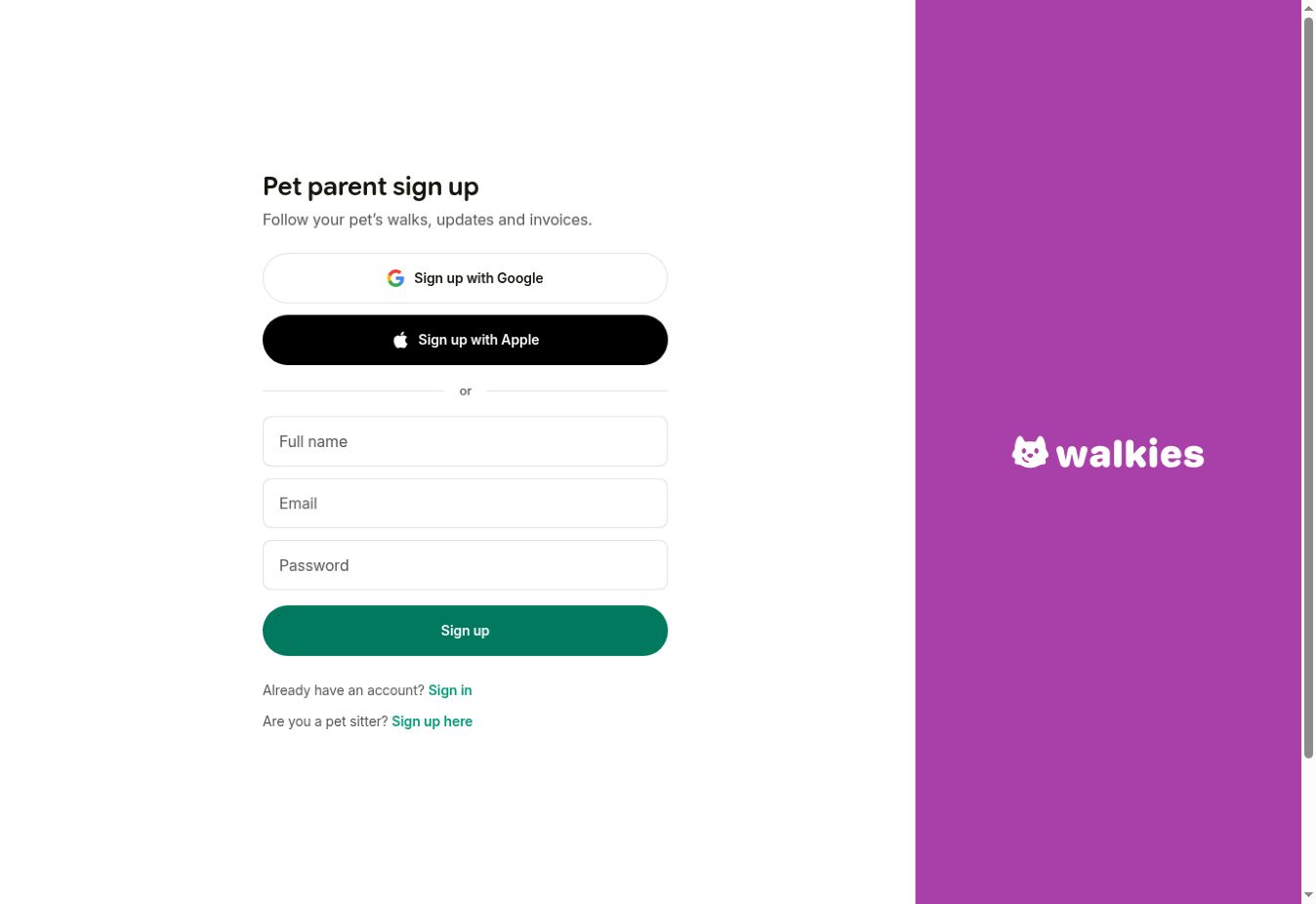
On the web, choose a sign-up method or complete the three fields. Use the pet parent form shown here.
Walkies sign-up screenSelect the image to enlarge.Step 3
Connect to Hound & About
Ryan sets up your customer and pet records and sends you a personal invitation, sometimes called a Connect Link.
- Open the invitation Ryan sends you, on the phone or browser where you want to use Walkies.
- Follow the on-screen steps to sign in or connect your existing account.
- Check that Hound & About and your dog appear. If they do not, ask Ryan to check the invitation and the pet record.
Keep your personal invitation for your own use. If another owner needs access, ask Ryan to arrange their connection.
Step 4
Add or check your dog’s details
Ryan will add or confirm your dog’s record as part of setting up your care. Your dog should appear after you connect. If Walkies asks for pet information during setup, complete the fields shown.
- Open your dog’s profile from the pet information shown in your account.
- Check their name, photo and the other details displayed.
- If editing is available, update the relevant fields and save. On the example Update pet screen, the tick at the top right saves your changes. Otherwise, send the correct information to Ryan.
- For another dog, send Ryan their details so he can add or confirm the extra pet and agree their care.
Details to have ready
- Name, breed and age or date of birth
- Your contact details and an emergency contact
- Vet details and any health or medication needs
- Behaviour, walking preferences and anything affecting their care
- Agreed collection or access arrangements
Share important care changes directly with Ryan as well as updating any editable profile fields.
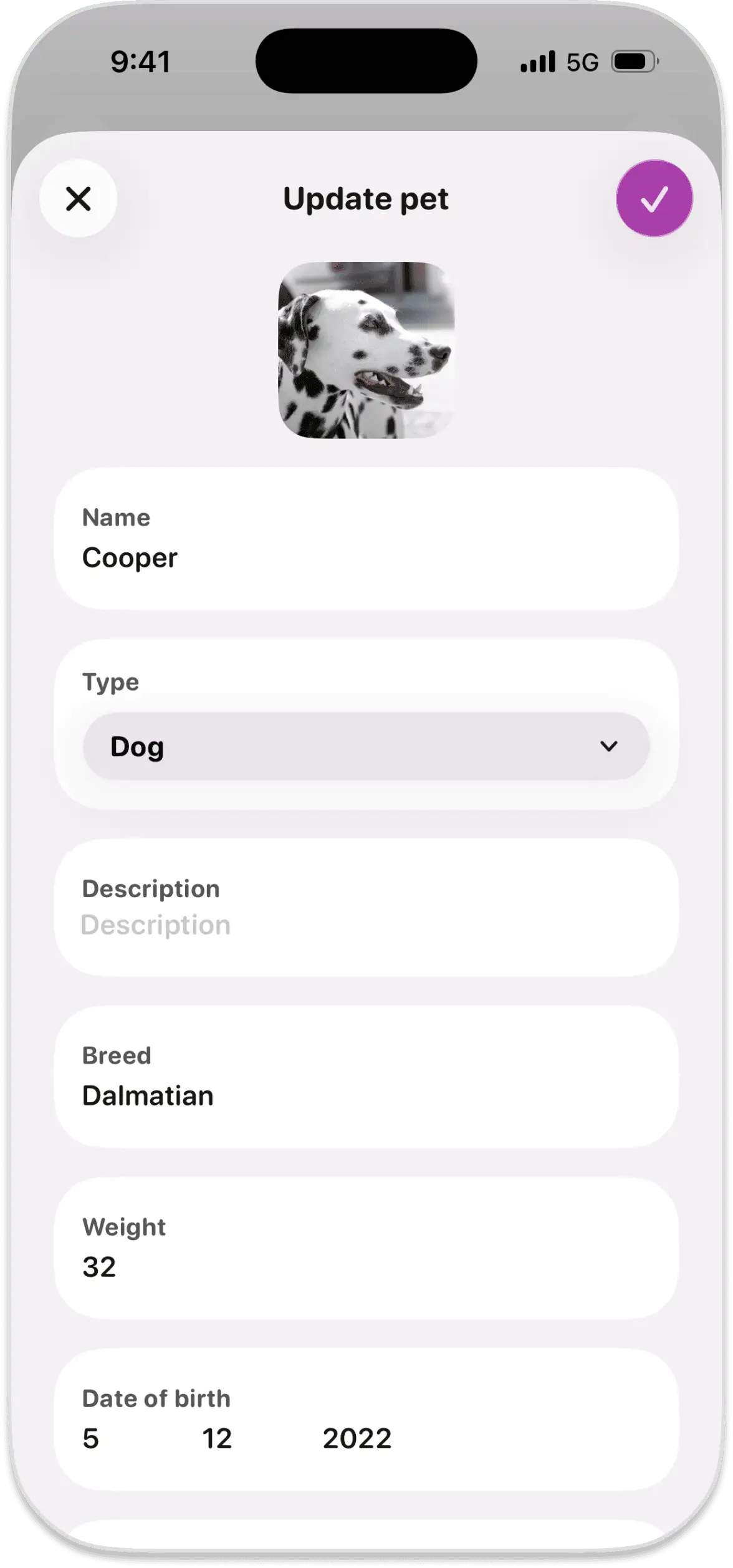
If Update pet is available, change the relevant fields and select the tick in the top right to save.
Walkies / SwiftLab Ltd exampleSelect the image to enlarge.Step 5
View appointments and request changes
- Open the appointments area (Appts in the example app screen) and select a walk or visit to check its details.
- If booking is available in your account, choose the service, pet, date and time. Review the price and any extras before following the on-screen request or booking steps.
- Check the confirmation shown. If you are unsure whether a request has been accepted, ask Ryan before relying on the booking.
- To change or cancel an existing walk, message Ryan with the date, time and change you need.
Booking options depend on what is enabled for your account. The arrangements and cancellation terms agreed with Ryan still apply.
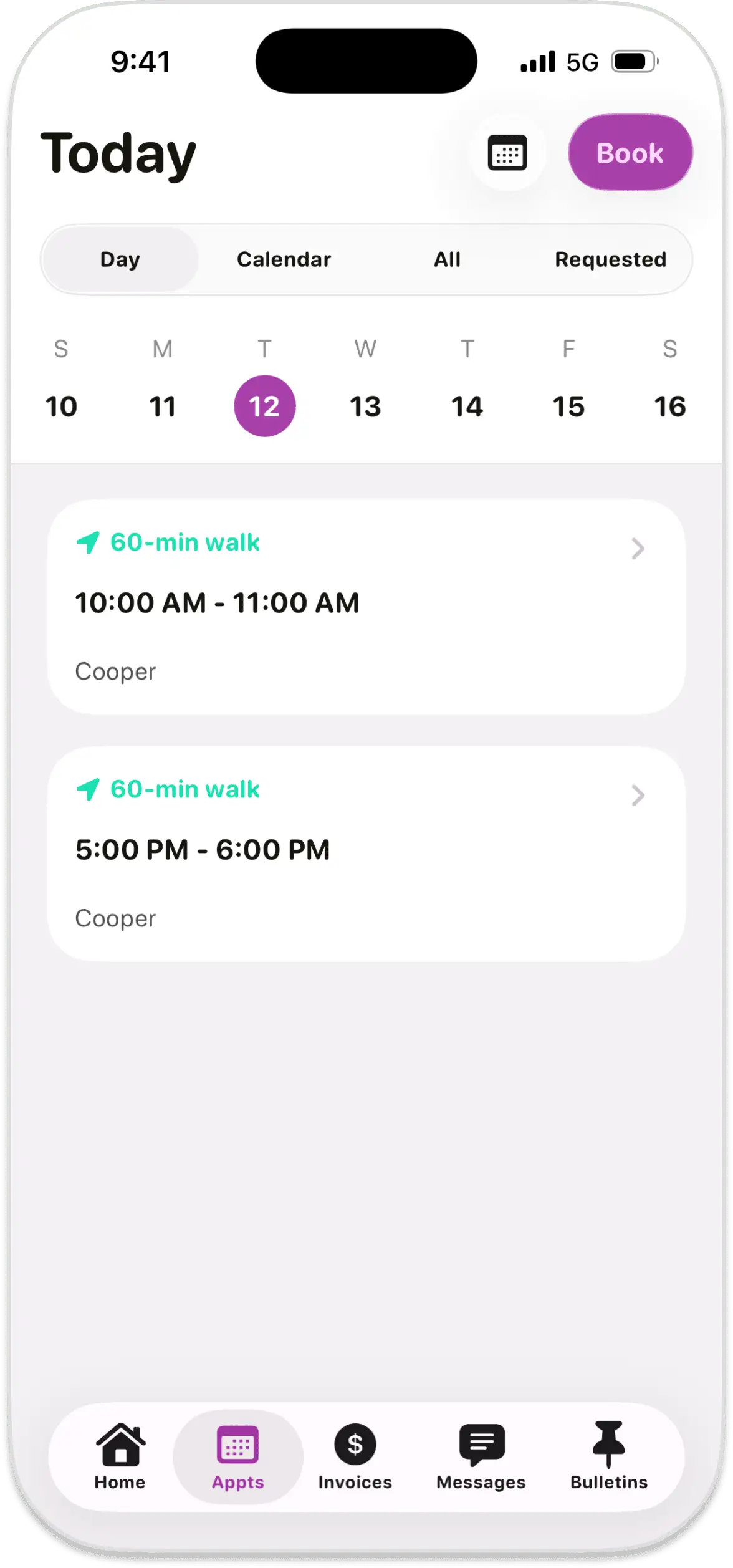
Use Appts to see the appointment list. Book starts a request when booking is enabled.
Walkies / SwiftLab Ltd exampleSelect the image to enlarge.Step 6
See walk routes, photos and reports
- Open the activity feed or the walk and visit reports shown in your account.
- Select the relevant outing by its date and your dog’s name.
- View the GPS route for a recorded walk, plus the photos, videos and notes Ryan has shared.
- Use comments or reactions where they are available.
The information shown depends on the outing and the updates shared. A home visit will not have a walking route.
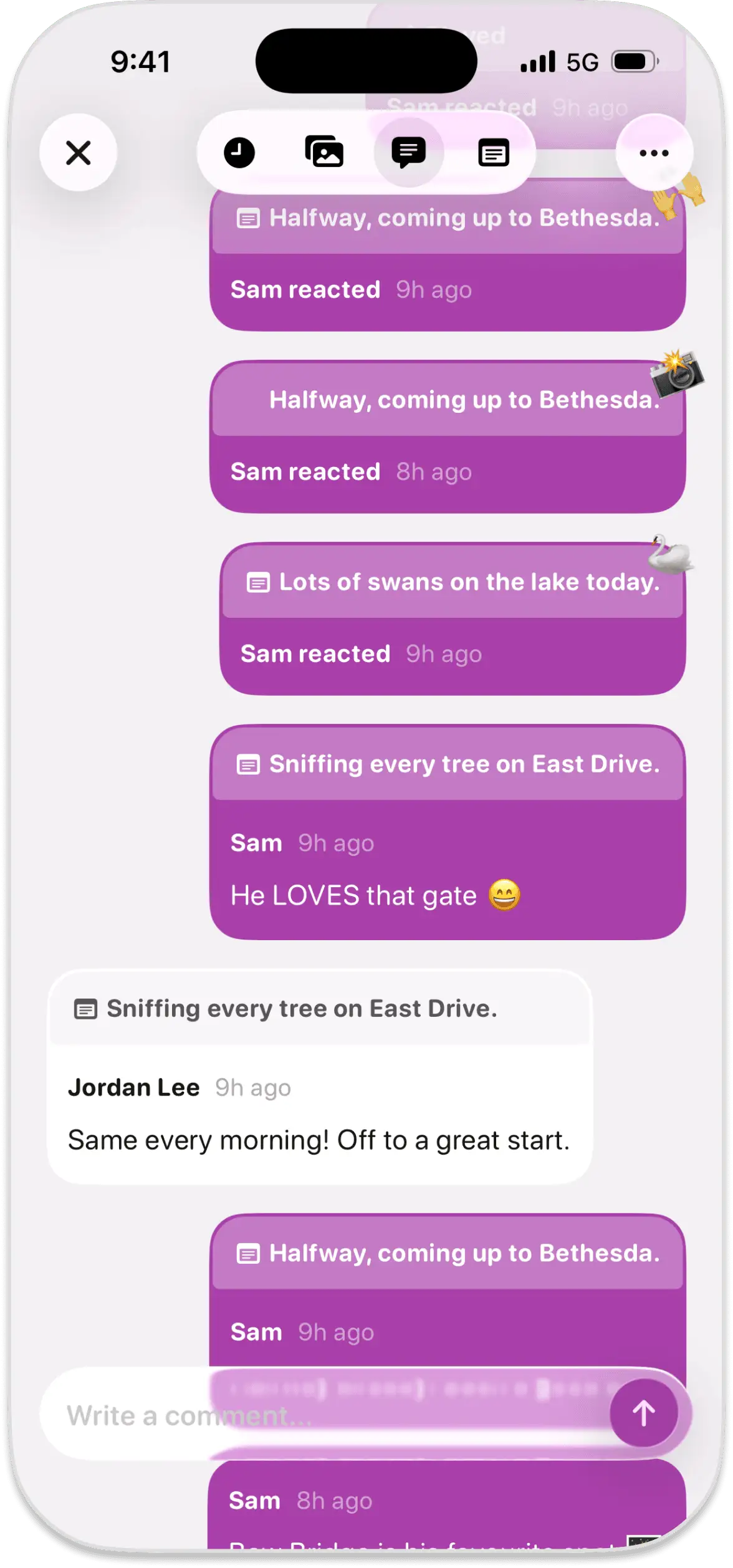
Within an activity report, read the updates and use Write a comment to respond where available.
Walkies / SwiftLab Ltd exampleSelect the image to enlarge.Step 7
View invoices and payments
- Open Invoices, choose Unpaid or Paid as needed, and select an invoice.
- Check the services, dates and amount. Ask Ryan about anything you do not recognise.
- If an online payment option is shown, follow its instructions. Otherwise, use the payment arrangements agreed with Ryan.
- Return to the invoice or payment history to check its status.
Online payment options depend on the business setup. Do not assume that a booking request or opening an invoice means payment has been taken.
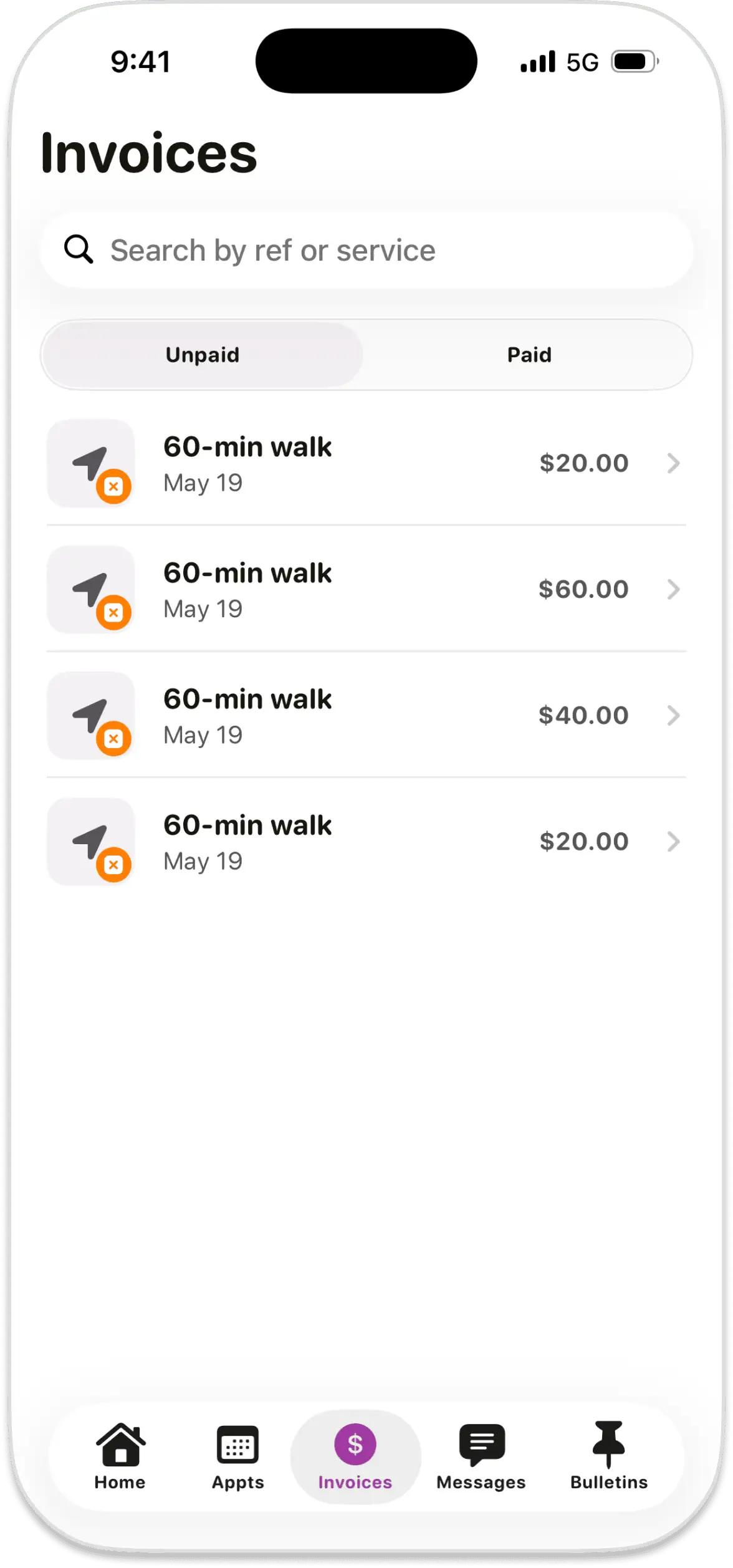
Choose Unpaid or Paid, then open an invoice. The dollar amounts are Walkies’ sample prices.
Walkies / SwiftLab Ltd exampleSelect the image to enlarge.Step 8
Messages, documents and notifications
- Open messages and select your conversation with Ryan to ask a question or share an update.
- Open the documents area to read any files Ryan has shared with you.
- If Ryan sends a separate registration, consent or signing link, complete the form through that link.
- Allow notifications for Walkies Client Pet Journal in your phone settings if you would like alerts when updates arrive.
A document visible in Walkies may be for reading only. Use the separate form link Ryan provides when information or a signature is required.
Step 9
If you get stuck
- My dog or Hound & About is missing
- Check that you have used Ryan’s personal invitation. Ask him to check that your login is connected to the correct customer and pet records.
- I want to add another dog
- Send Ryan the new dog’s details so he can add or confirm their record and agree the walks or visits you need.
- I cannot sign in
- Use the same method you used to create the account: Google, Apple, or email and password. For an email login, the web sign-in screen has a Forgot password? option.
- The invitation will not open
- Check your internet connection and try opening the link in your usual browser. VPNs or ad blockers can interfere with connection links. If it still fails, ask Ryan for help.
- I cannot see a new update
- Check your internet connection, reopen the app or report, and confirm you are viewing the right dog and date. Ask Ryan if you are still unsure.
- I cannot see booking or payment options
- These options depend on your account and the business setup. Contact Ryan to agree the booking or payment arrangements.
For urgent changes affecting your dog’s care, contact Ryan directly.
Useful links
- Create a pet owner account
- Sign in to the client portal
- Download for iPhone & iPad
- Download for Android
- Walkies’ own help for pet owners
- About Walkies Journal
Guide updated 6 October 2026. Mobile menus and available options can vary.